
If you are an operator of trade or business (T:mi), an agricultural/forestry operator, select Manage your tax matters in MyTax. When you start with Manage your tax matters, you can access all your tax affairs. Read more: New in MyTax
How to make a request for tax information in MyTax
-
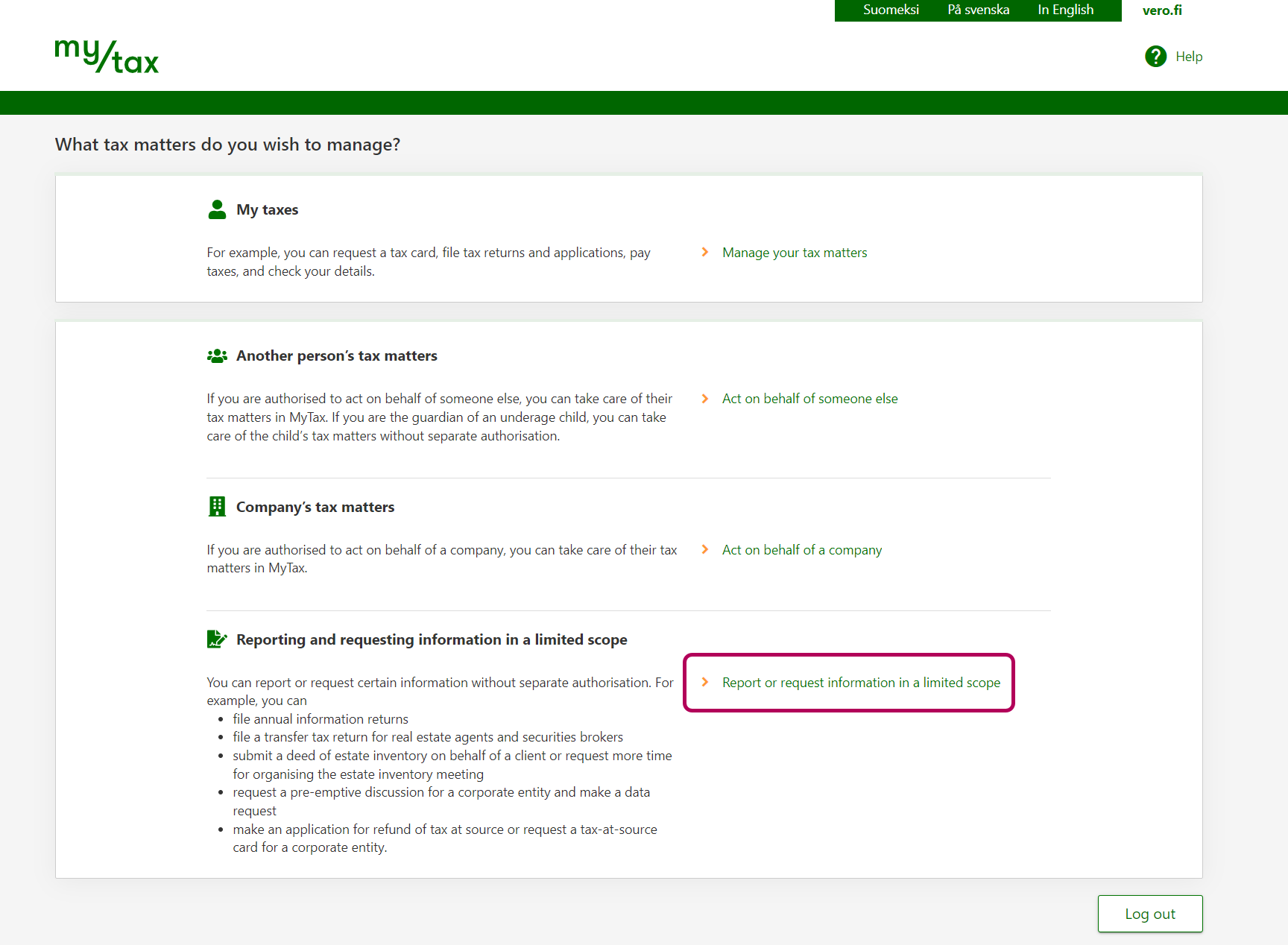
Scroll down until you get to Reporting and requesting information in a limited scope. Select Report or request information in a limited scope.
-
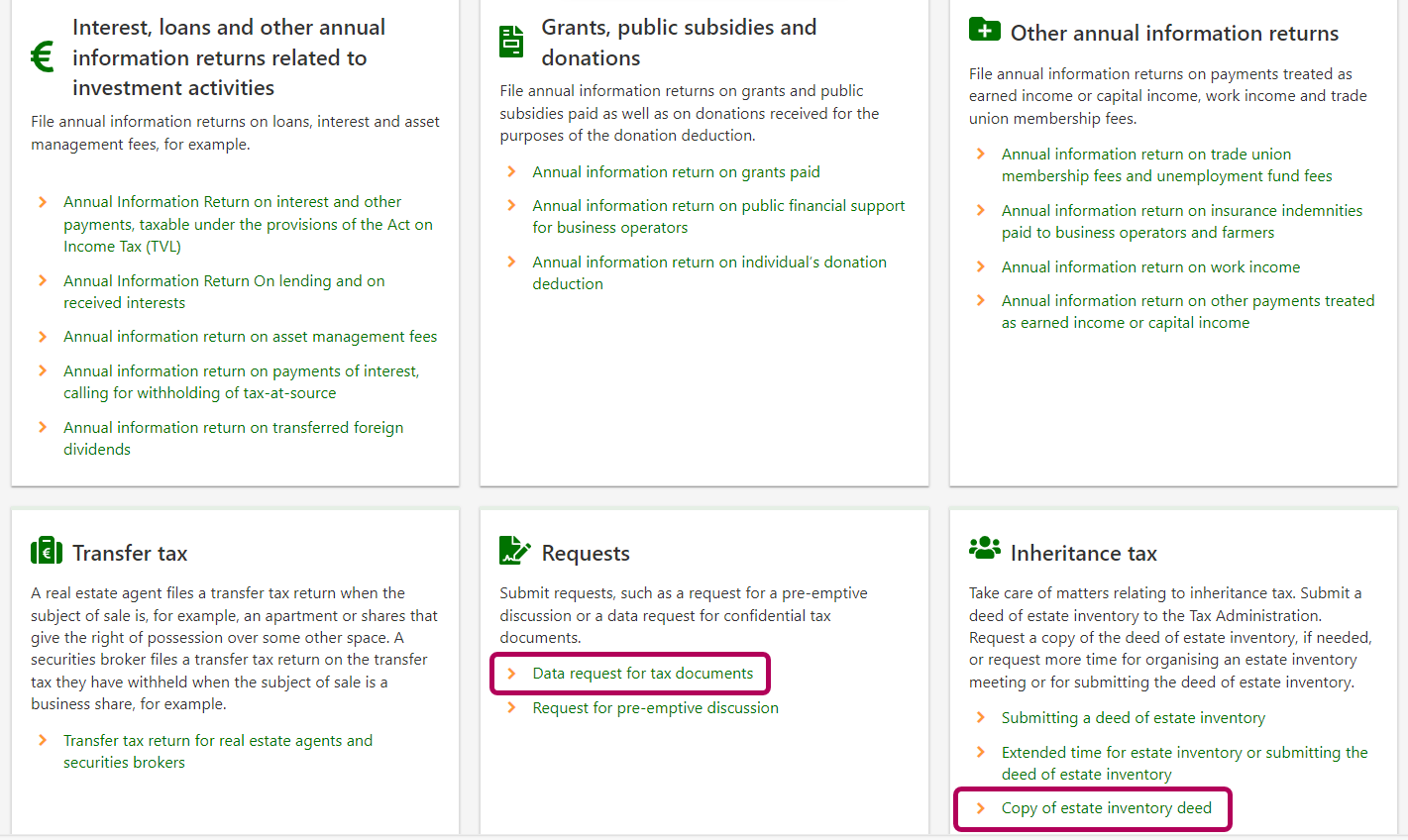
Scroll down the MyTax home page.
- If you need a copy of a deed of estate inventory, go to Inheritance tax and select Copy of estate inventory deed.
- If you want to request another document concerning another person or company, go to Applications and select Data request for tax documents.
Note! If the deed is from before 1994, you should ask the District Court of the municipality where the deceased person lived to provide you with the photocopy.
Contact information for District Courts in Finland: oikeus.fi
The Tax Administration keeps permanent records of deeds of inventory drawn up in 1994 and later. Any enclosed documents are included in the records. For deeds from earlier years, the archival period at the Tax Administration is 30 years.
Details of the request
Select the type of party making the request. In other words, you need to indicate whether you are a private requester or whether you are submitting the request on a company’s (other organisation’s) behalf.
Click either Yes or No, as appropriate.
- For No, enter the private requester's name and personal identity code or Business ID.
- For Yes, enter the authorised person’s name and personal identity code. In this case, you also need to add a scanned copy of the letter of authorisation. Click Add attachment at the bottom of the page, or fill in a free-text description of the existence of authorisation i.e. your powers of attorney. Use the text field. In addition to the authorised person’s name (yours), you also need to fill in the actual requester's name and personal identity code/Business ID.
Example: A private individual has given a letter of authorisation to his or her bank, so the bank’s employee can ask the Tax Administration to provide a photocopy of an inventory deed. The bank employee should select “private individual” for type, then click Yes in answer to “Did your client authorise you to make this request”, and then fill in the bank employee’s name under “Name of authorised person”. Finally, the private individual’s name and personal identity code need to be entered under “Name of person requesting the photocopy”.
Fill in the decedent's name, personal identity code and date of death.
Fill in a delivery address for the photocopied documents.
Select whether the photocopies should cover the deed only or the entire package including the deed of estate inventory and all the documents enclosed with it.
Provide reasons why you need the photocopy. If you ticked Other reason, please provide more information about the purpose of use in free text.
Indicate whether you are among the death estate’s shareholders. If you answer No to “Are you an estate shareholder”, please write a detailed free-form account of why you are requesting a photocopy of the deed.
Enter the contact information of a person who can provide further information. Such a person can be a third party, i.e. not necessarily the party requesting the photocopy.
Click Next.
Preview and send
Now you can re-check all the entries you made. Finally, click Submit.
Note: the Save as unfinished button will make the page available to you later, so you can continue completing it, under Status of returns and requests on MyTax home page.
Please note that almost all your tax documentation is available in MyTax. Read the instructions: How to find letters, tax decisions and tax certificates in MyTax
Type of data request
If your request concerns tax information from an earlier year, the documentation is not in a MyTax archive, i.e. you cannot find it in MyTax. For this reason, your selection should be I am requesting my own tax documents or the tax documents of another person who has authorised me. This selection must also be made if you have a letter of authorisation from someone who is your relative, or if you work for a service company and the company’s client has authorised you to ask for their tax information.
Note: the Tax Administration no longer keeps taxpayers’ pre-completed returns, decisions on assessments, etc. for the year 2008 or years before that. In accordance with the Tax Administration’s archive policy, the information is no longer on record.
Click Next.
Basic details
If you are requesting your personal tax information: Enter your name in the Name field and fill in your personal identity code.
If you have a letter of authorisation and you are requesting someone else’s information:
- Enter that person’s name in the Name field, i.e. the person’s whose documents you are requesting, and who authorised you to do so by giving you the letter of authorisation. Enter his or her personal identity code or Business ID, as well.
- Answer Yes to “Have you been authorised to request tax documents on behalf of someone else?” After that, enter your name under Name of authorised person and fill in your personal identity code or Business ID. You also need to describe the authorisation you received. Add a description text and click Add attachment to attach the letter of authorisation in an electronic format. You can use the authorisation form available on tax.fi: Letter of authorisation for tax representation (3818e)
Fill in a delivery address for the photocopied documents and details of a person to contact. In this case, the person to contact can be a third party, i.e. not necessarily the party requesting the photocopy.
Click Next.
Requested data
Click the Add details button.
Select the document type and year. If the type you select is "Other tax document", you need to provide some additional information.
You can click the Add details button again to add more documents to your request.
Click Next when you are done.
Preview and send
Now you can re-check all the entries you made. Finally, click Submit.
If you find it useful to save a full duplicate of the request you are making, you can first open the PDF file, and then save it and keep it in your records. If you choose to do this, you need to do it on the same day.
Note: the Save as unfinished button will make the page available to you later, so you can continue completing it, under Status of returns and requests on MyTax home page.
Type of data request
In this case, your type selection should be I am making a data request for tax documents as an authority or as a representative of another organisation.
An authority or an organisation can obtain information on confidential tax documents only if they have a legal right to access the information, in accordance with the express legal rules found in an Act of law. When making the request, you need to refer to the legal provision on which the right to access information is based.
Click Next.
Basic details
Fill in the Name of party requesting data as appropriate: if you are an employee of a Finnish municipal entity, write your name in this field.
Indicate the type of your organisation and provide a delivery address for the photocopied documents.
Give the name, telephone number or email address of a person to contact. You can be the contact if you fill in your name, telephone or email address here.
To make your data request acceptable, it is necessary to refer to a legal provision on which the right to access information is based. Click the Add legal provision button. Tick the box for the Act, Statute, Decree, etc., including paragraphs, sections as appropriate. If you select “Other relevant legislation”, please specify the legal rule or provision concerned.
Fill in the Account of data use field with information about the purpose you are using the tax information for. If you prefer to receive the requested contect by e-mail only, indicate this preference here.
Please note: it may be that a data request is connected to tax information subjected to non-disclosure for personal safety reasons. If this concerns the request you are making, you are asked to include a description of the processing of information in order to ensure data protection. If you actually need information on income, and no tax information subjected to non-disclosure, click the No button.
Click Next.
Reporting method
Select whether you are adding the details on the requested tax documents one by one – alternatively, you can just upload a file.
- For a data request involving less than 10 different taxpayers’ information, it is recommended that you select One by one.
- For a data request that concerns a large number of taxpayers, we recommend that you create a .csv file. Select As a file. After making this selection, you are ready to click Add file to upload the file.
If you create a file to upload it here, please read the instructions: “Instructions for generating CSV files” — Viranomaisen tietopyyntö verotusasiakirjoista – ohje CSV-tiedostojen muodostamisesta (available in Finnish and Swedish)
Data requested
Assuming your selection was One by one, you can click the Add details button at this stage.
- Enter the name of the taxpayer – a person or a company. You also need to enter their personal identity code, Business ID or other identifier as appropriate.
- Select the document type and year.
- Click OK.
You can click the Add details button again to add more requests. For each one of them, you need to provide the information concerning requested documents and their tax years.
Example: Let us say you need the 2022 Pre-completed return and Tax decision of a certain individual. To make the request, you must identify both two documents one by one, i.e. click Add details twice: When filling in the fields for the first time, enter the details concerning the pre-completed tax return. When filling them in for the second time – the details concerning the decision document. As a result, the data request will have 2 specific lines under the relevant taxpayer’s information. You can follow these instructions in the same way if you need data for a certain individual, covering several tax years.
Click Next when you are done.
Preview and send
Now you can re-check all the entries you made. Finally, click Submit.
If you find it useful to save a full duplicate of the request you are making, you can first open the PDF file, and then save it and keep it in your records. If you choose to do this, you need to do it on the same day.
Note: the Save as unfinished button will make the page available to you later, so you can continue completing it, under Status of returns and requests on MyTax home page.
Typical users of this selection are:
- Legal service firms including attorneys-at-law, as they submit data requests concerning third-party taxpayers i.e. not concerning their present clients
- Estate administrators handling a bankruptcy
- Individuals who are co-owners of real estate property, as they share the related tax obligations
Please note that this selection cannot be used for any requests for a photocopy of an inventory deed of a death estate.
Type of data request
Select I am requesting the tax documents of another person or a company
- if you are acting as an agent and are requesting the tax information of a third party on behalf of your client
- if the tax information of another party affects your personal tax matter
- if you need the tax information of another party in order to make an estate inventory, to carry out a division of assets or a distribution of an estate, or to act as an administrator of a bankruptcy estate
Click Next.
Basic details
Enter your name and your personal identity code in Name of party requesting data. You also need to describe the authorisation you received. Add a description text and click Add file to attach the letter of authorisation in an electronic format.
Fill in a delivery address for the photocopied documents.
Give the name, telephone number or email address of a person to contact. If the contact is you, fill in your name and telephone number or email address here.
Fill in the Account of data use field with information about the purpose you are using the tax information for, including your reason or legal base for making the request. Please fill in the field with clear descriptions and written accounts concerning the relevant matters. You can read further instructions in MyTax. If you prefer to receive the requested data content by e-mail only, indicate this preference here.
Click Next.
Data requested
Click the Add details button.
- Enter the name of the taxpayer – a person or a company. You also need to enter their personal identity code, Business ID or other identifier as appropriate.
- Select the document type and year.
- Click OK.
You can click the Add details button again to add more requests. For each one of them, you need to provide the information concerning requested documents and their tax years.
Example: Let us say you need the 2022 Pre-completed return and Tax decision of a certain individual. To make the request, you must identify both two documents one by one, i.e. click Add details twice: When filling in the fields for the first time, enter the details concerning the pre-completed tax return. When filling them in for the second time – the details concerning the decision document. As a result, the data request will have 2 specific lines under the relevant taxpayer’s information. You can follow these instructions in the same way if you need data for a certain individual, covering several tax years.
Click Next when you are done.
Preview and send
Now you can re-check all the entries you made. Finally, click Submit.
If you find it useful to save a full duplicate of the request you are making, you can first open the PDF file, and then save it and keep it in your records. If you choose to do this, you need to do it on the same day.
Note: the Save as unfinished button will make the page available to you later, so you can continue completing it, under Status of returns and requests on MyTax home page.